


This guide contains step by step instructions on how to set up syncs from source tables to HubSpot objects. Each sync type has a few quirks and requirements for the source tables to allow for seamless mapping.
This guide covers the data sync setup and the required data structure to support it.
As part of your onboarding Engaging will perform the initial setup for you. But if you need to make any adjustments to mappings, this guide covers it all.
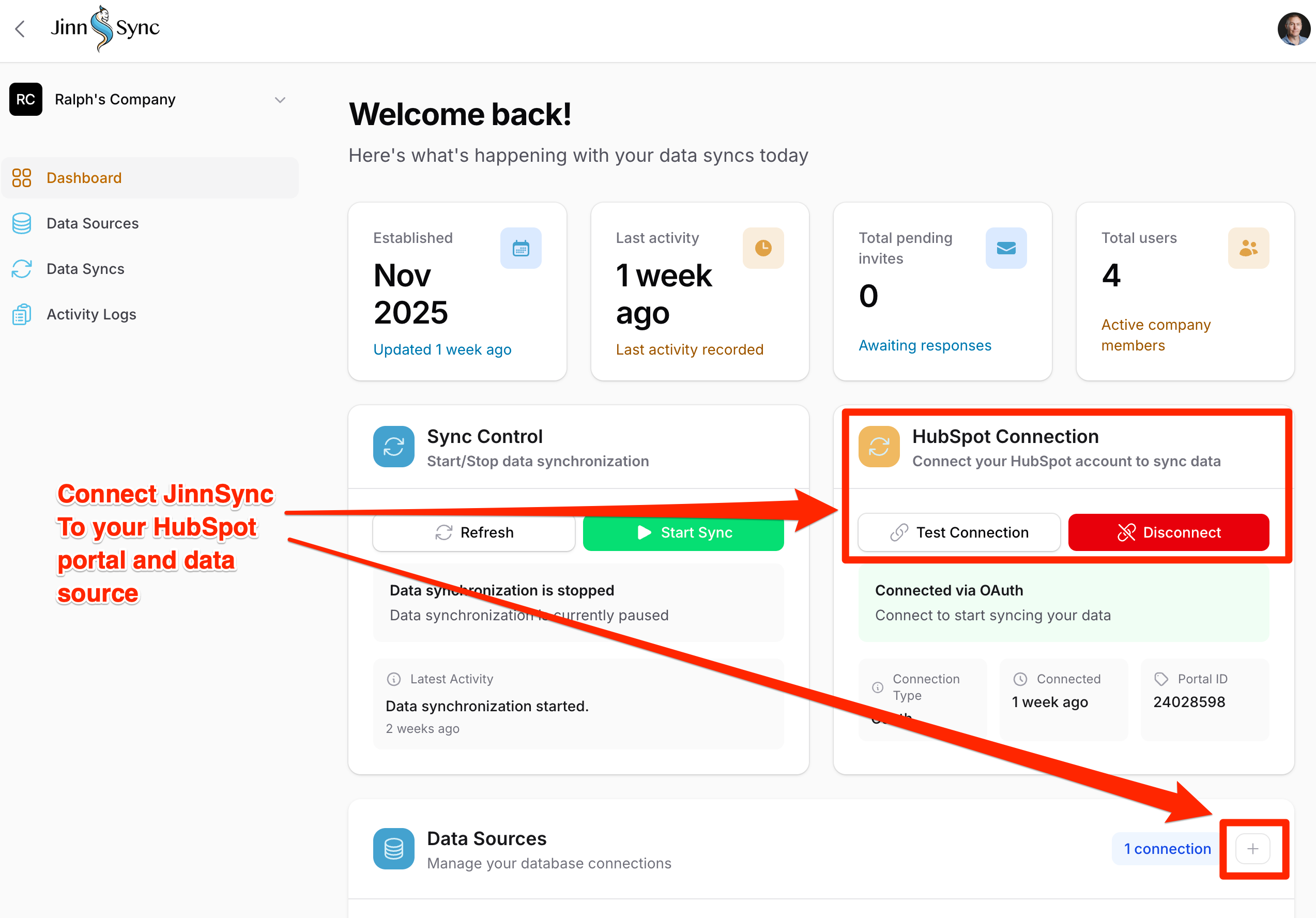
Connecting to HubSpot & data sources
Once you have created an account on JinnSync start by connecting your HubSpot portal & data source tables. Follow the prompts and enter the appropriate details during this process.
Object syncs
Object syncs allows you to map from a source table directly to a HubSpot object. Standard objects & custom objects are supported. Eg. Contact, company, deal, tickets + any custom objects created.
The only object with a slight difference is the contact object as you can use either a custom unique ID property or the HubSpot contacts email address.
-
It is important to think through the use case here as it could make associations more difficult later on.
Required columns on the source table:
-
A unique ID - you must also set this property to unique on the HubSpot side as it is used to UPSERT records
-
For contacts if you are using a seperate unique ID (not email address) it can be possible to get conflicts during the sync. The reason for this is HubSpot natively uses email address as a unqiue ID and if contacts already exist in HubSpot with the same email address before you start synicng it conflict. To address this you can sync the email to a secondary custom property. Eg. jinnsync_email. Then handle the copying of the email address to the HubSpot email field using a workflow.
-
-
Modified at/on timestamp - the integration uses this to check for new records to consume
-
Some other objects like deals will require a deal stage / pipeline ideally to be defined and set as well.
Example table: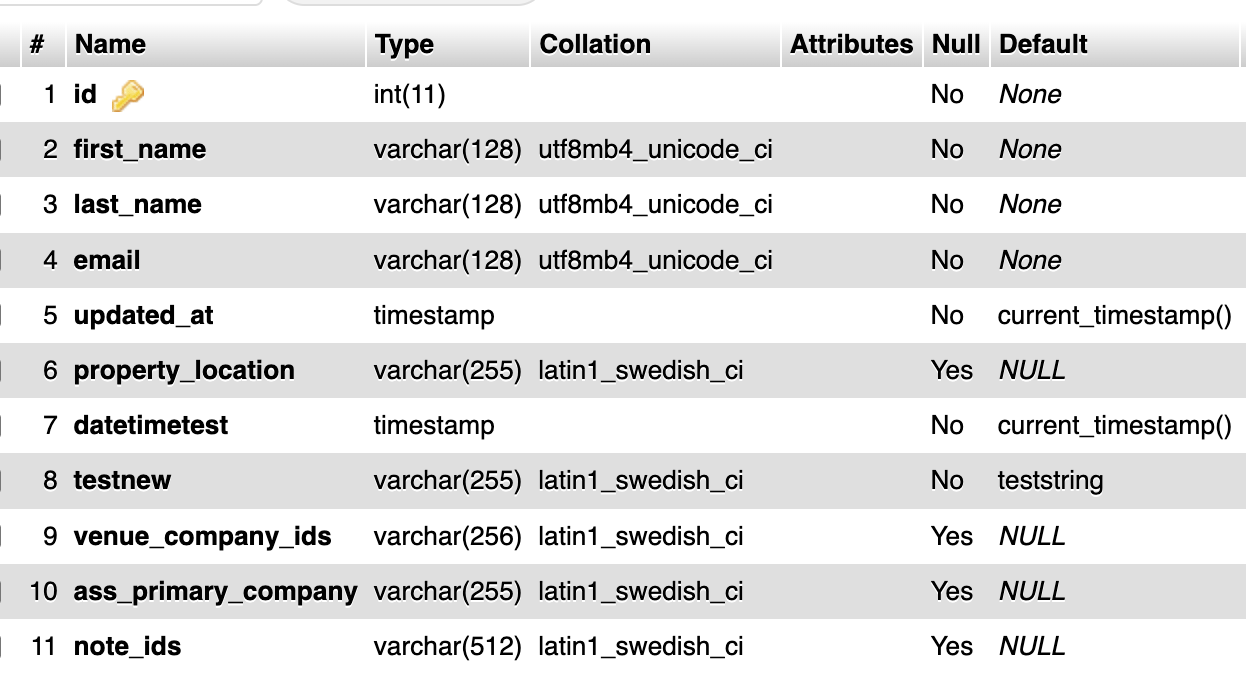
Configure the sync settings here and select your source table and appropriate settings :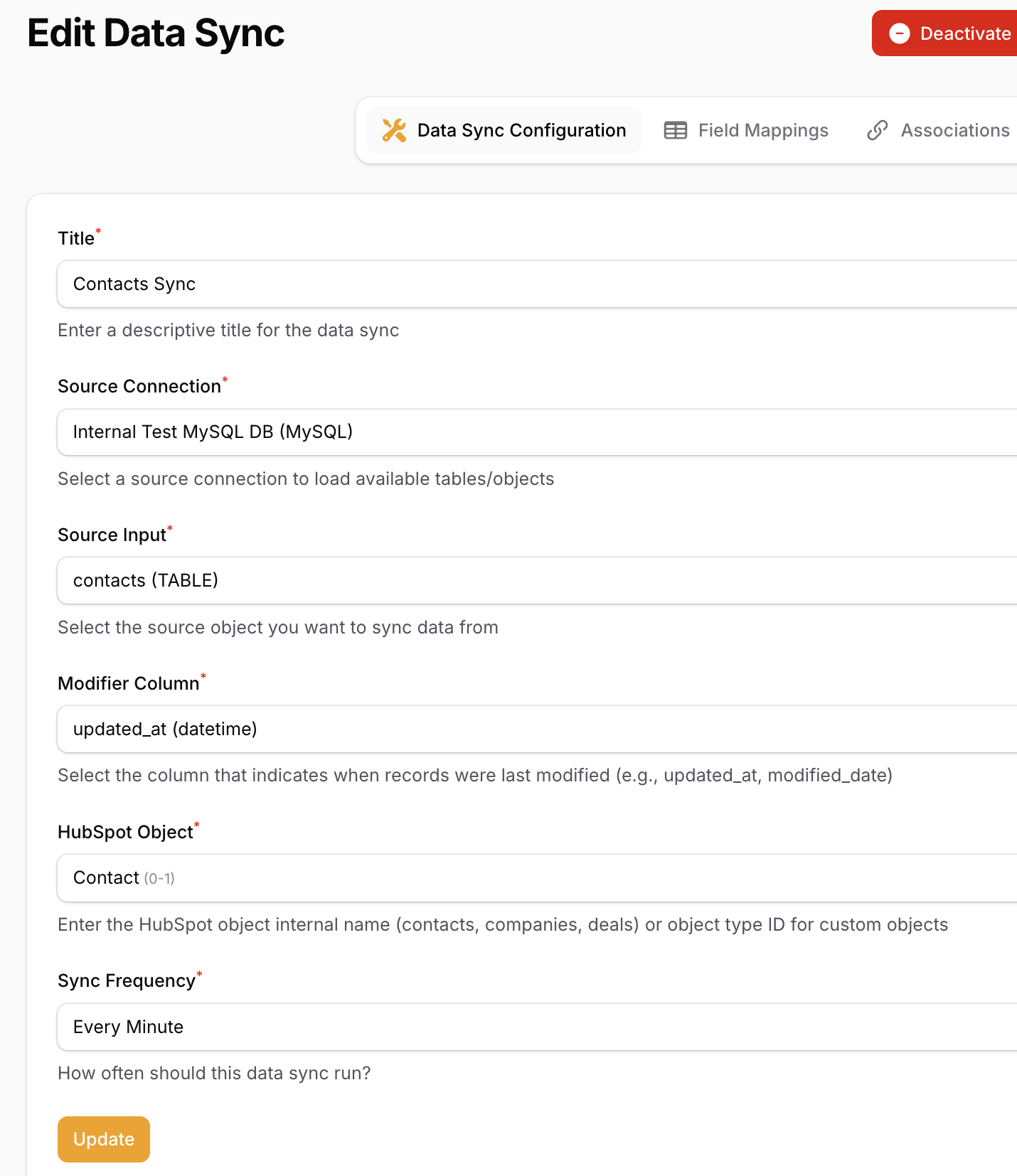
🚨 Note: a high sync frequency can significantly impact billing from Databricks, Snowflake or Big Query.
Field mapping
The field mapping interface allows you to map the columns from the source table to the HubSpot object properties. We have created an interface here to allow you to easily map and handle common issues that arise from other sync tools.
Flexible mapping
Use this when no transformation is required. This is ideal if you are mapping to a single or multiline text property in HubSpot that will accept any kind of data.
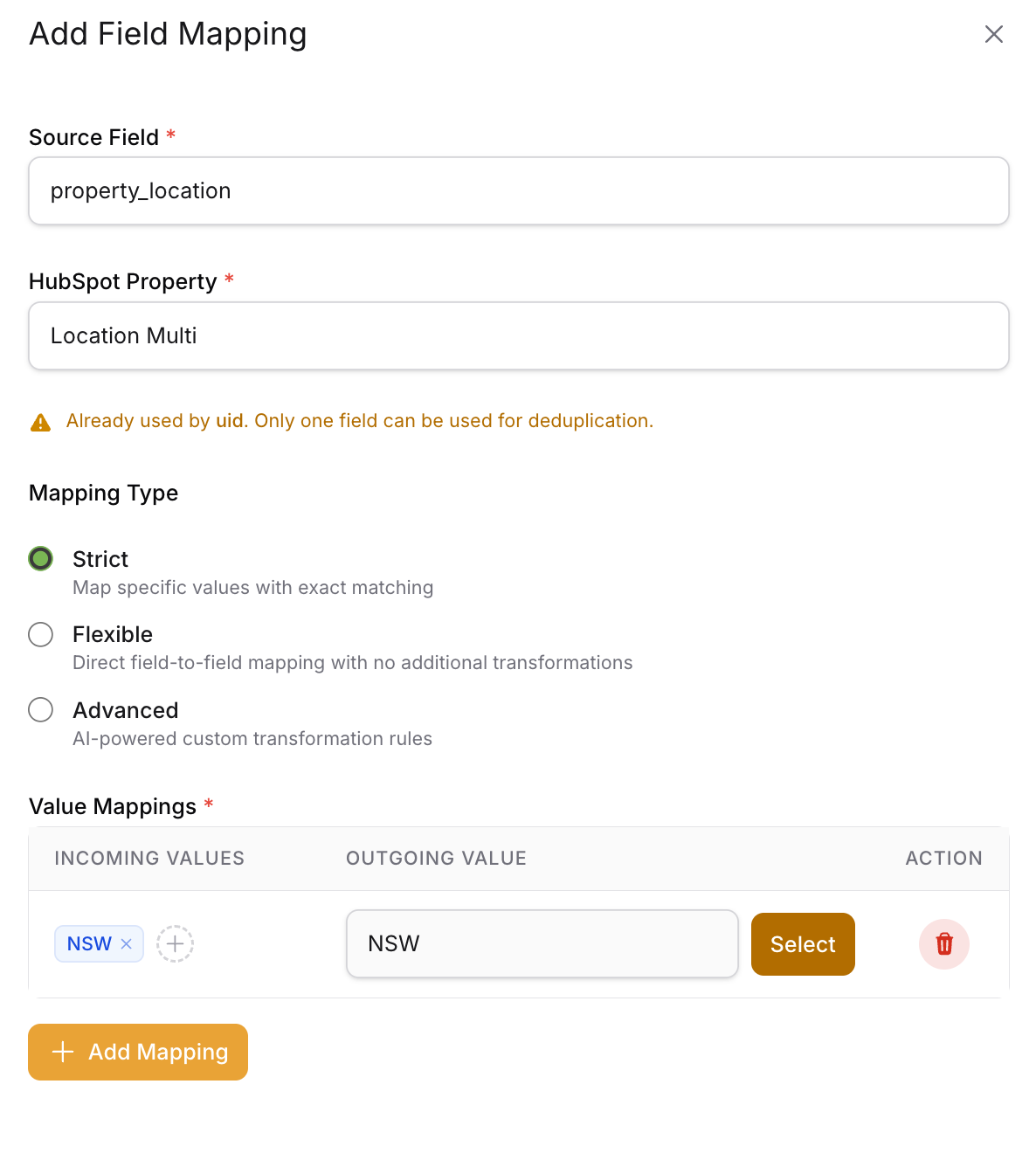
Strict mapping
This is designed to handle mapping to:
- Single checkbox
- Multiple checkbox
- Radio select
As the values pushed must match exactly on the HubSpot side or the sync will error. Our interface makes this easy as it will pull the unique values from the source data base & the HubSpot side and allow you to create a match.
If there is no matching values it will simply be pushed as blank on the HubSpot side until it has been mapped. This also helps avoid any errors or blocking the sync.
Date & Time Properties
Date and time properties can come in many different formats from the source side. When you select a date or date & time property to map to on the HubSpot side the interface will detect this and force you to select the correct format:
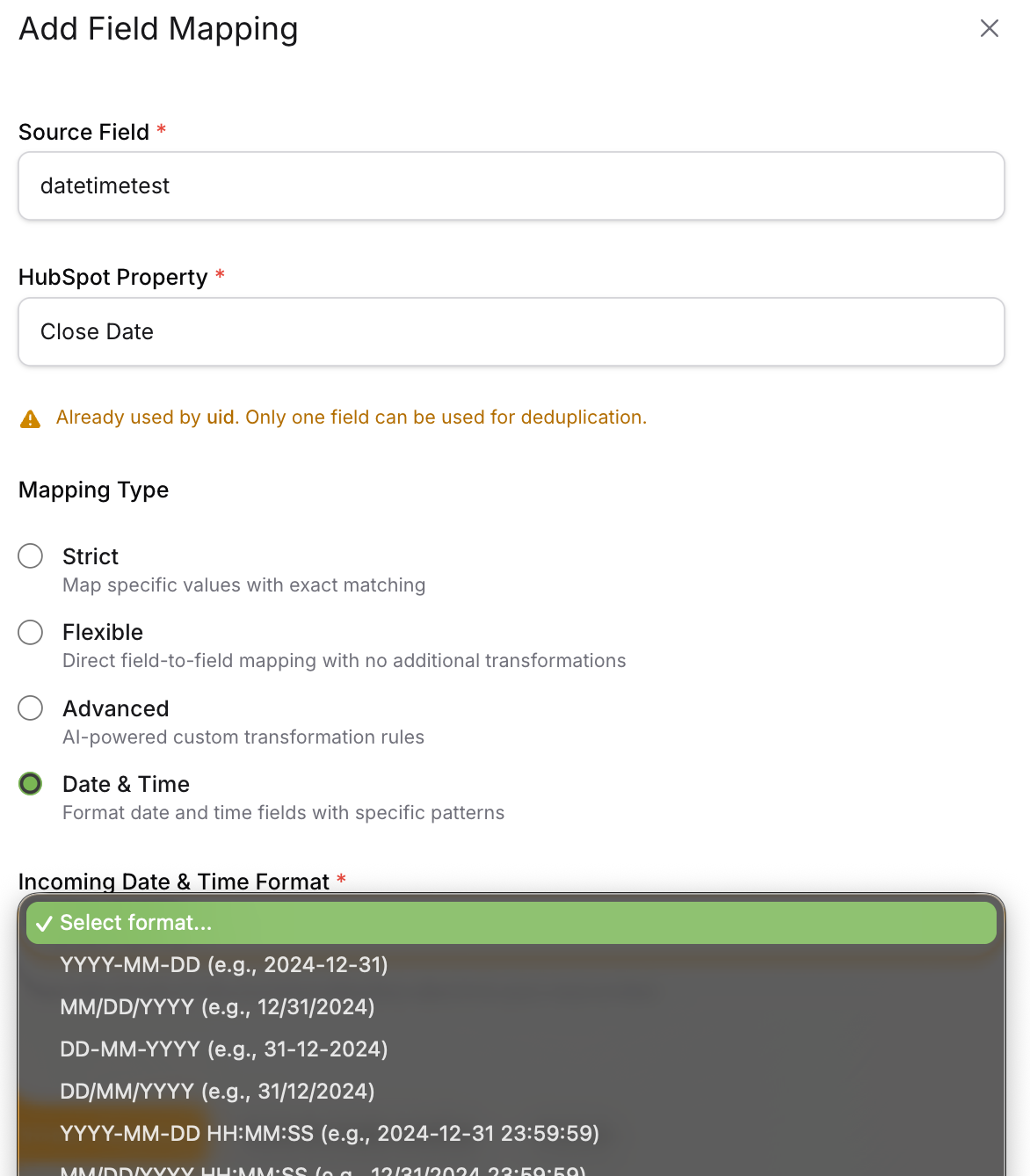
It is critical that the correct format is selected. If you are unsure click on the source preview tab and compare:
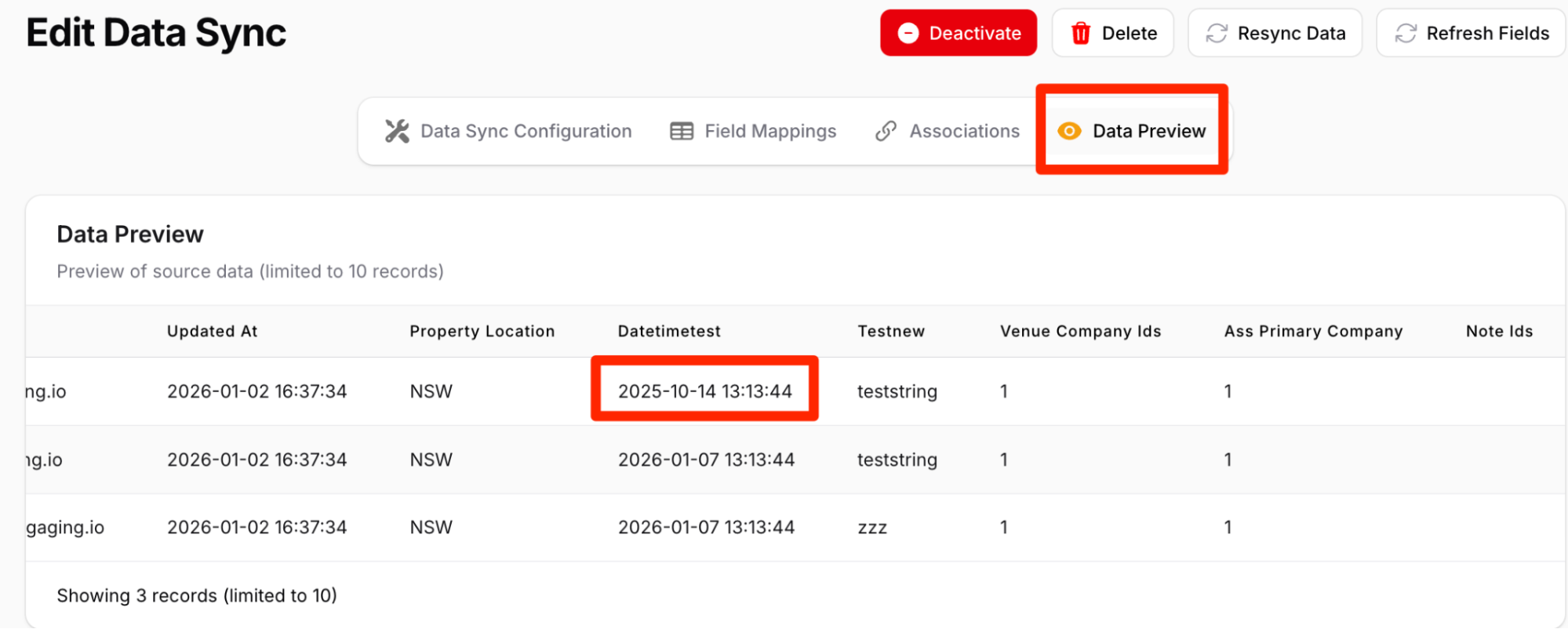
For this example you would select: YYYY-MM-DD HH:MM:SS from the “Incoming Date & Time Format” options. When the data is processed it will automatically convert it to what the HubSpot field requires.
Advanced mappings & last mile transformations
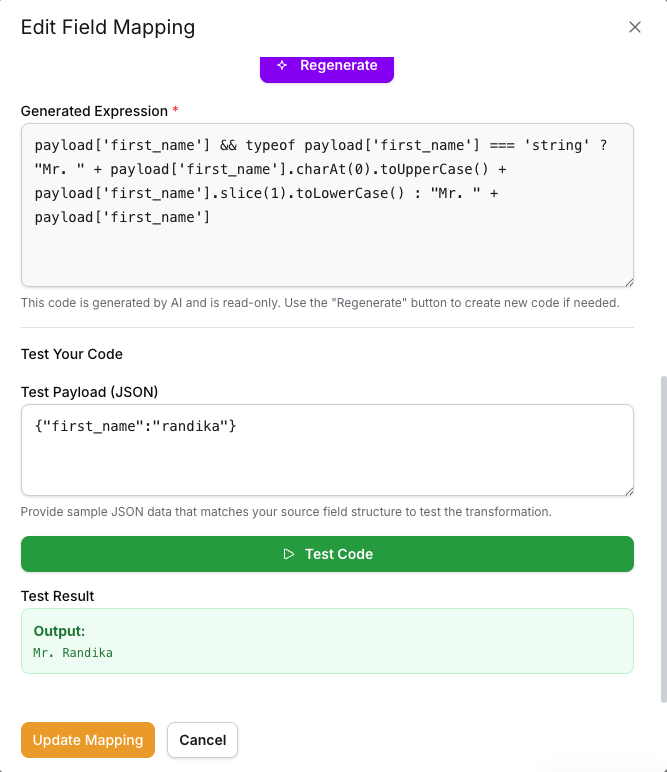
Have some kind of crazy transformation rule you want to add? Use the Advanced AI to generate the correct statement to apply during processing.
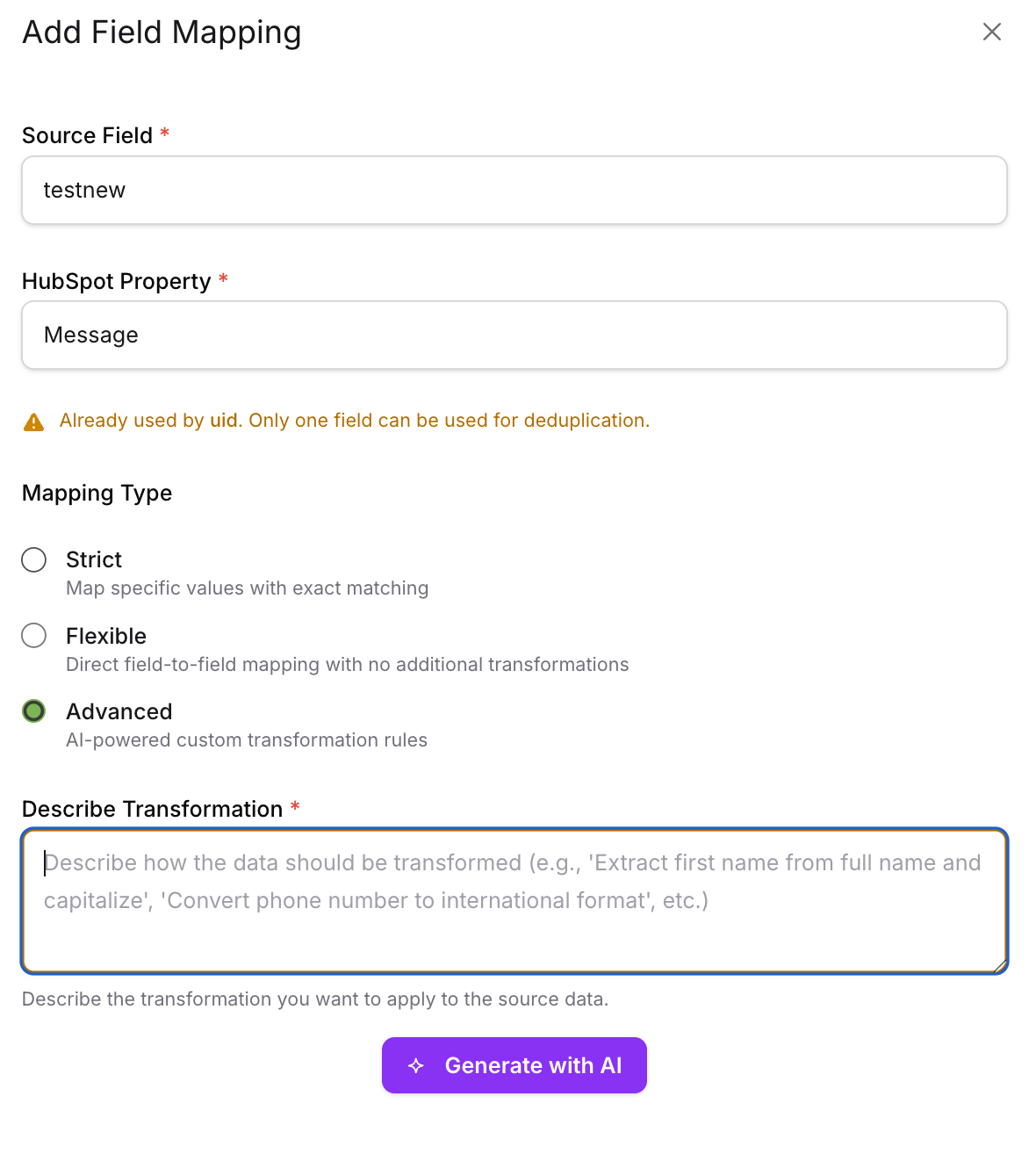
Here are the steps to use the advanced mapping feature:
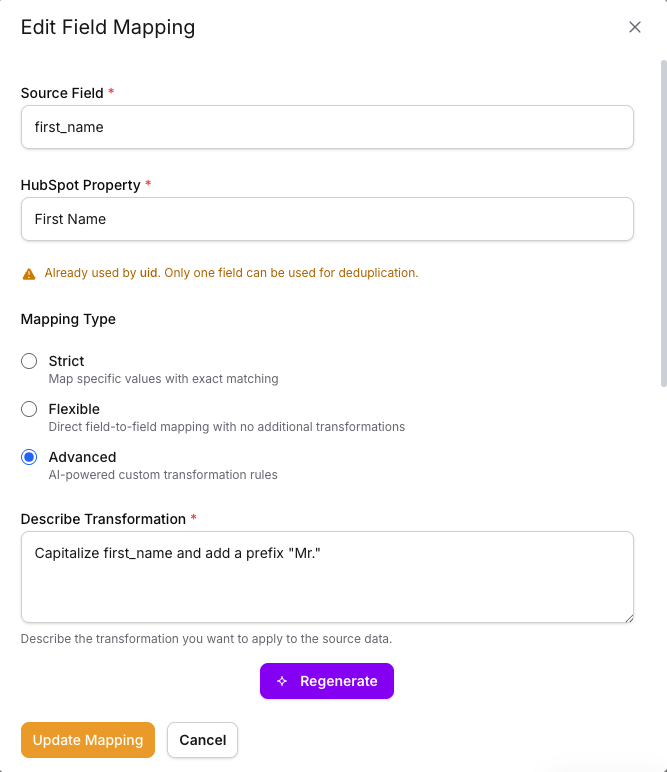
- You enter the mapping rule in natural language. Eg: “Capitalize first_name and prefix it with ‘Mr.’ ”.
- Then click “Generate” and this will generate a read-only code for your mapping rule.
- You may test the generated code via the “Test Your Code” section. In this section you just need to add a json containing “first_name”.
- Then click on “Test Code” and the result will be shown below. If the result does not satisfy your mapping rule, update the rule and follow the same steps until the tests get passed.
Example:
Association Creation
Associations can also be easily handled by JinnSync. There are a few requirements on the source table to facilitate the association creation process.
- There must be a unique ID column that contacts the IDs of the other objects that you need associated. Eg. if associating contacts to multiple companies the company UID’s need to be stored in a column on the contact table
- As mentioned further above if you use the email address on the contact sync you will need to use the full email address in the additional column for associations. (if we have two unique fields mapped, like email address and UID, then we can use any of them to build the association_ids column and when mapping, we need to select the uid column as the Associating Table Key.)
- If you want to apply different labels there needs to be multiple column with the ID’s separated by ;
Example:
We have an association label called “Venue Owner” and want to associate a contact to multiple venues and label them accordingly
Contact table:
Company table: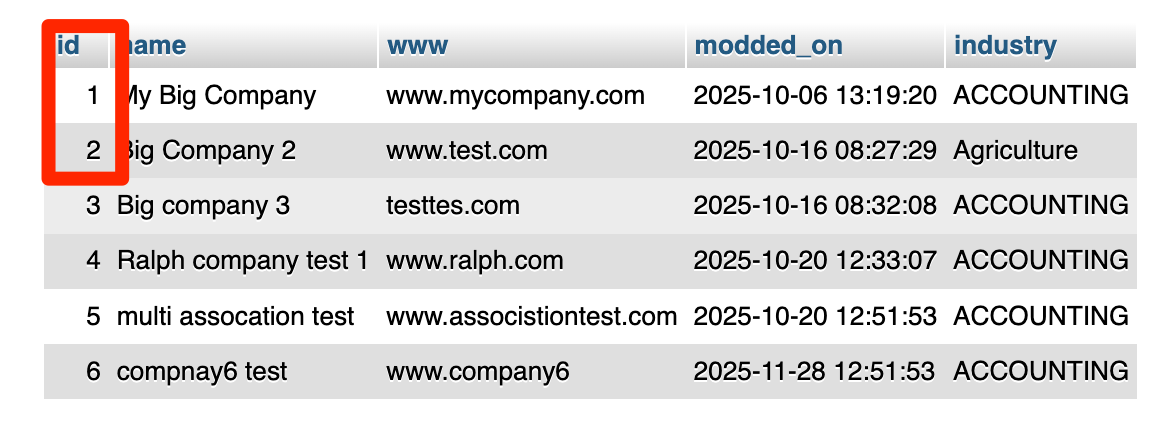
Creating the association: 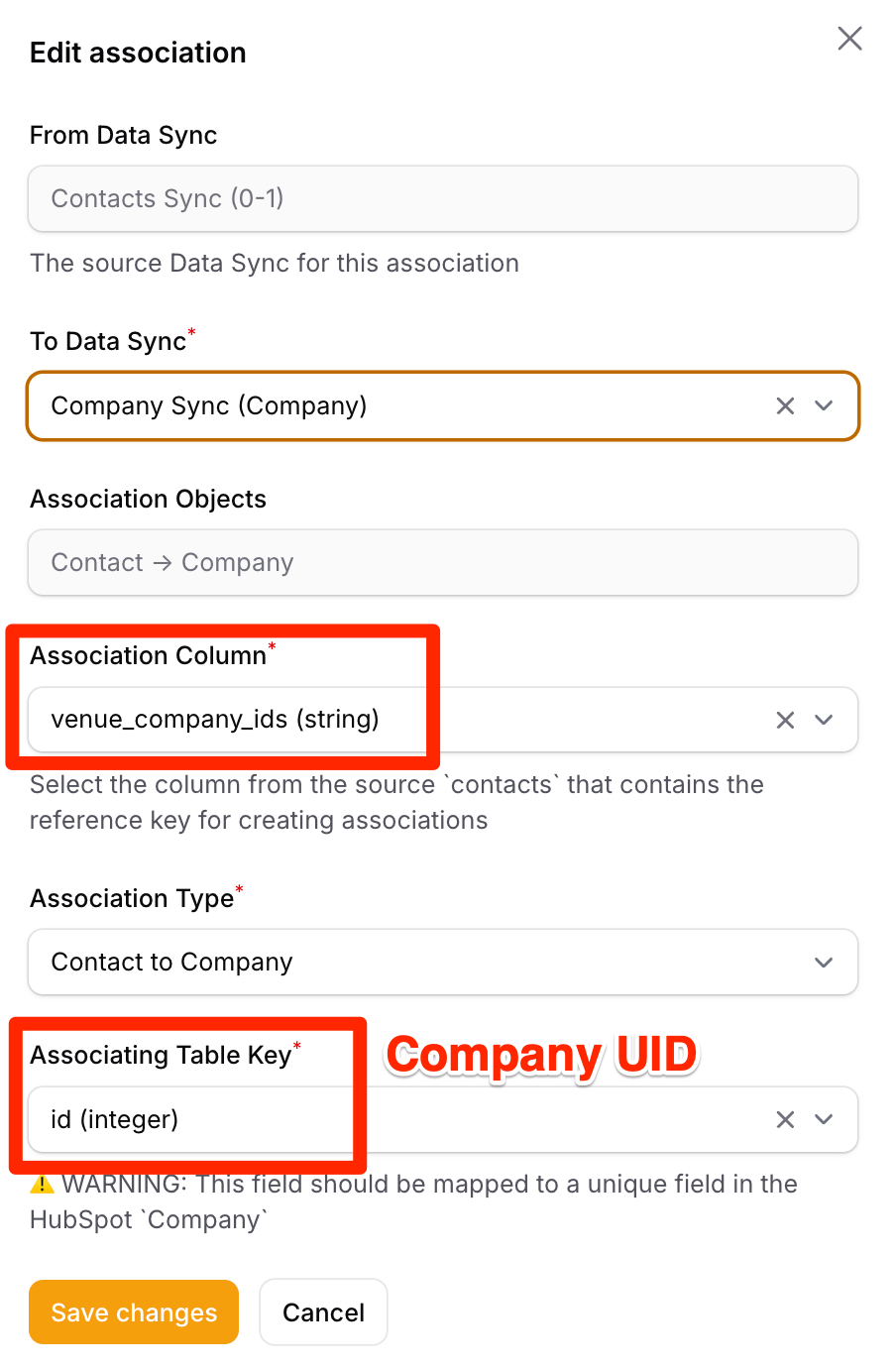
You can create multiple association syncs on each object. This is useful if you have multiple other objects you want to associate to with different labels.
Activity syncs
Jinnsync also supports HubSpot activities (Notes, Emails, Tasks, Calls, Meetings). Attachments can also be processed and linked to an activity eg. a note.
Each activity supports several different properties. These will require columns with the correct values set if you want to map them. Please reference the API docs here for the property types & examples.
Eg. Email properties section is located here.
Unique IDs
When setting up an activity sync for the first time you will be asked to define a unique ID for the HubSpot side. Once created it is important that you map a unique ID from the source table to this as it will allow JinnSync to update the existing records instead of creating new ones. Eg. if a task or meeting detail is changed in the source table.
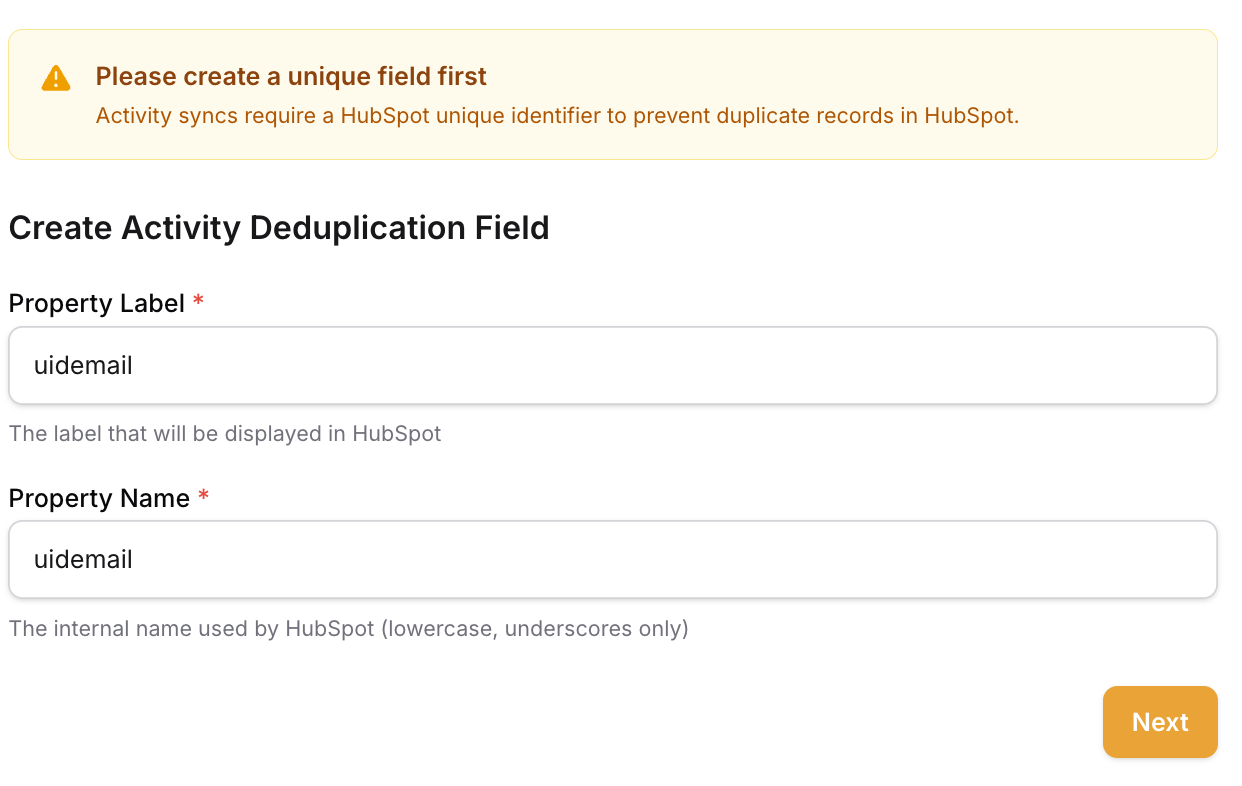
Once created you can now map a source ID to this activity property. If you ever re-sync from the source table it will update the existing records instead of creating new activities:
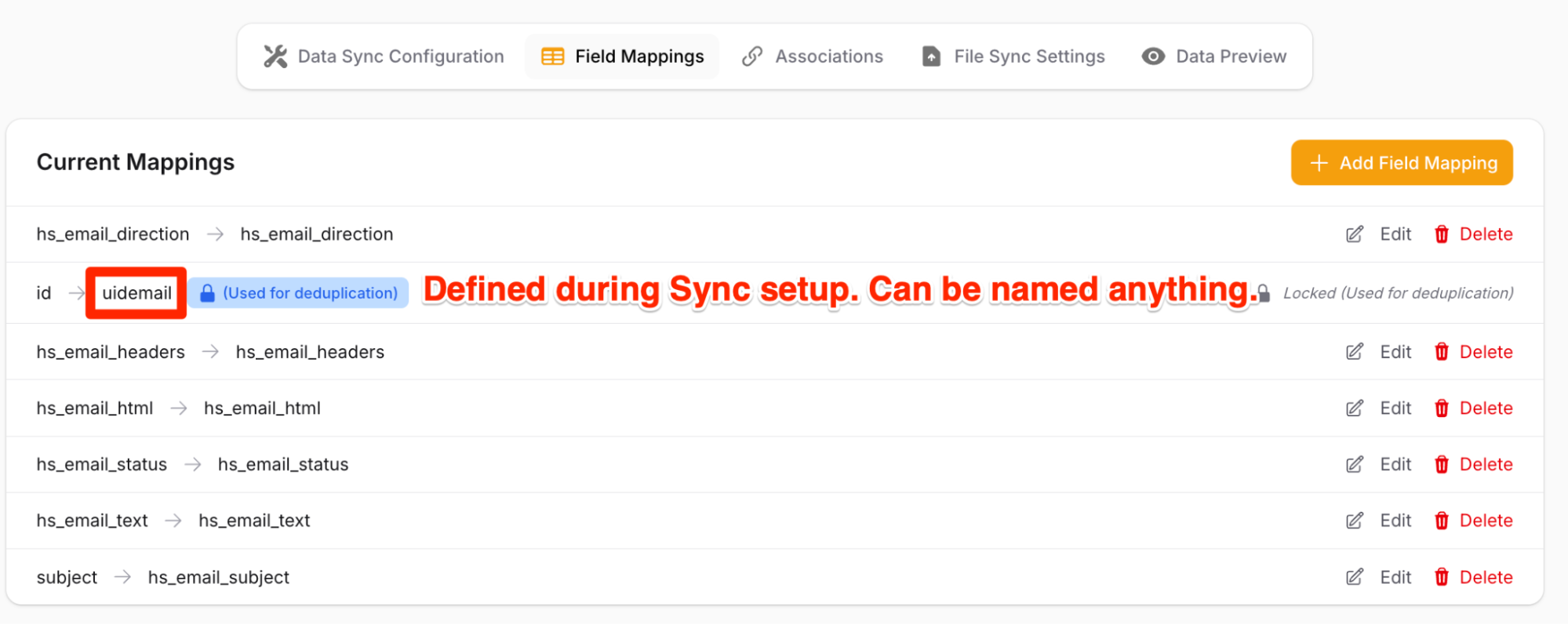
The field mapping and association process is the same as other objects.
Files attachments sync
Files can also be processed and uploaded as attachments to activities. Currently we only support files stored in an S3 bucket.
Prequisites:
- All files must be uploaded to an AWS s3 bucket
- The meta data about the files must be stored in a table for JinnSync to consume from.
1) Add the S3 bucket as a new source: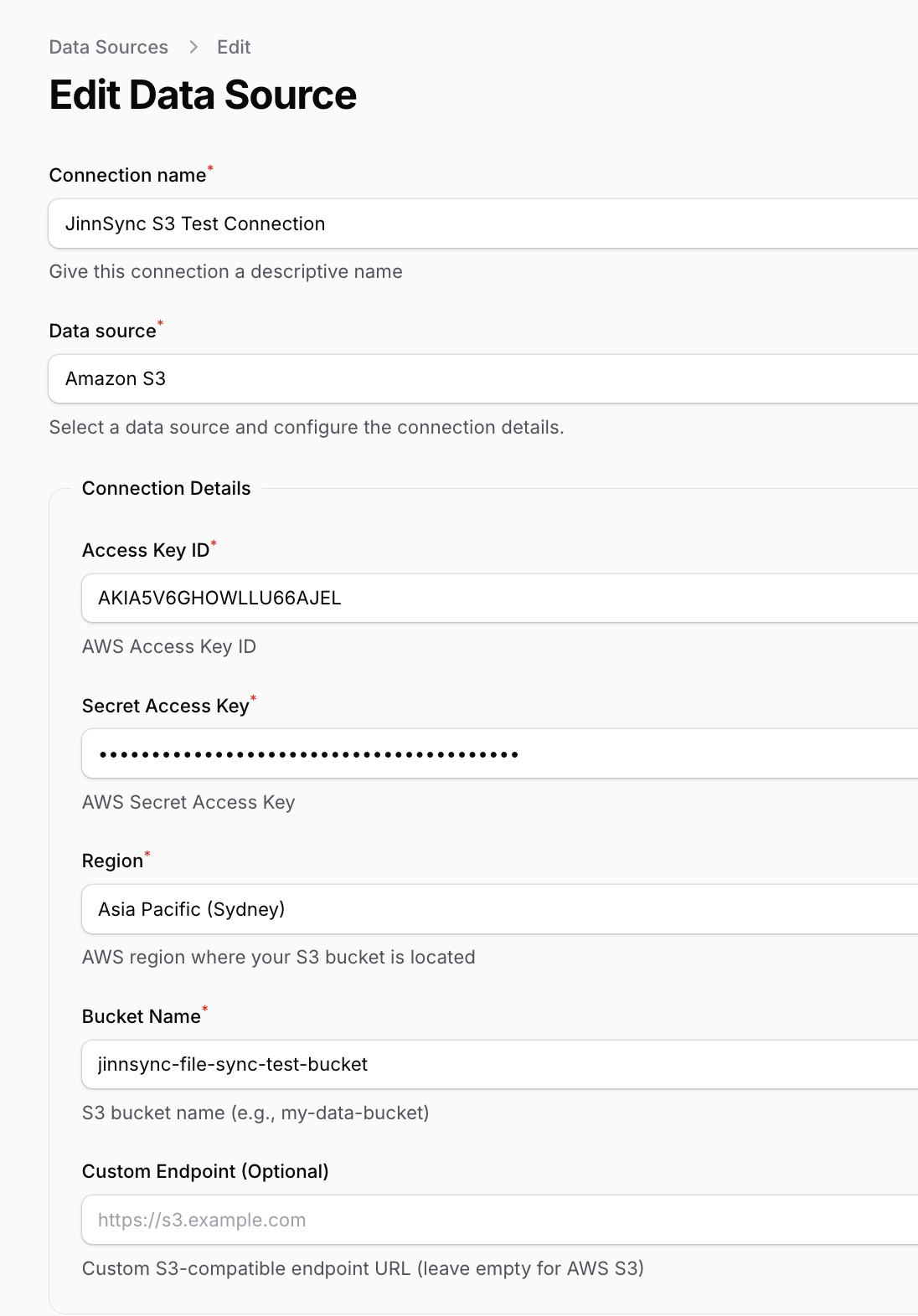
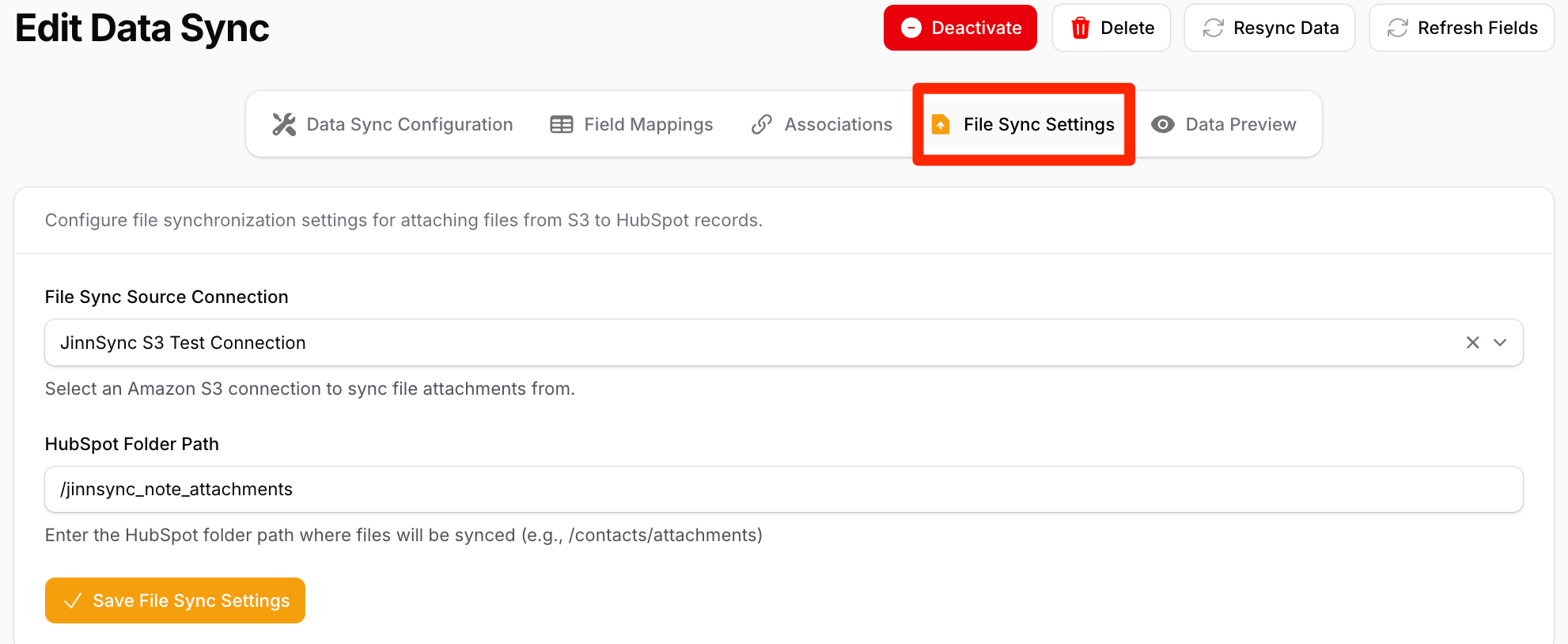
After receiving the file source connection details and file sync details. We will continue setting up the source files table ingestion pipeline. The ingestion pipeline will update the files table in source by including the filename, storage key etc. Then, an activity sync like notes will handle the file sync process by adding the HubSpot activities to object timelines including the attachments.
Custom event syncs
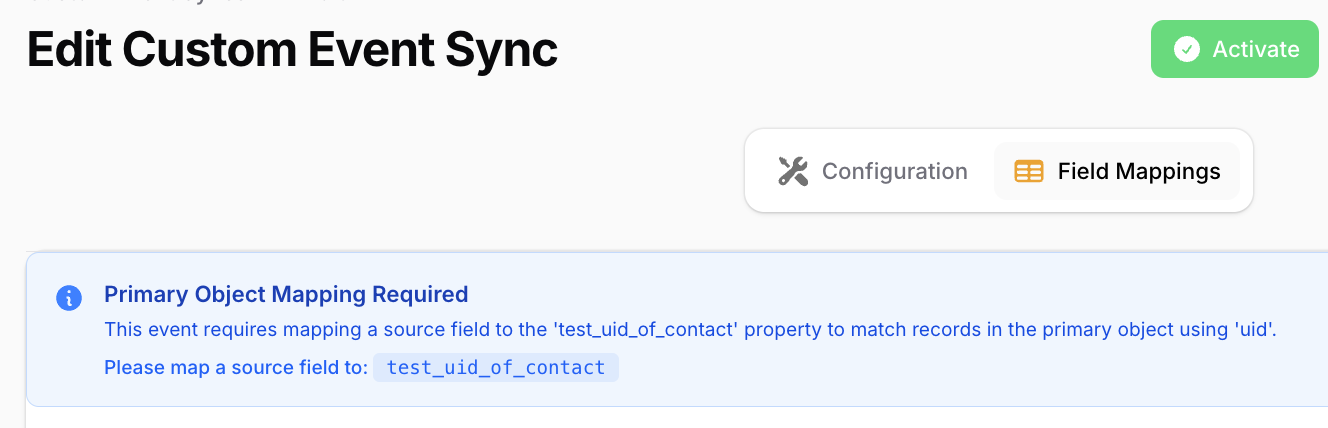
Jinnsync also supports syncing of custom events.
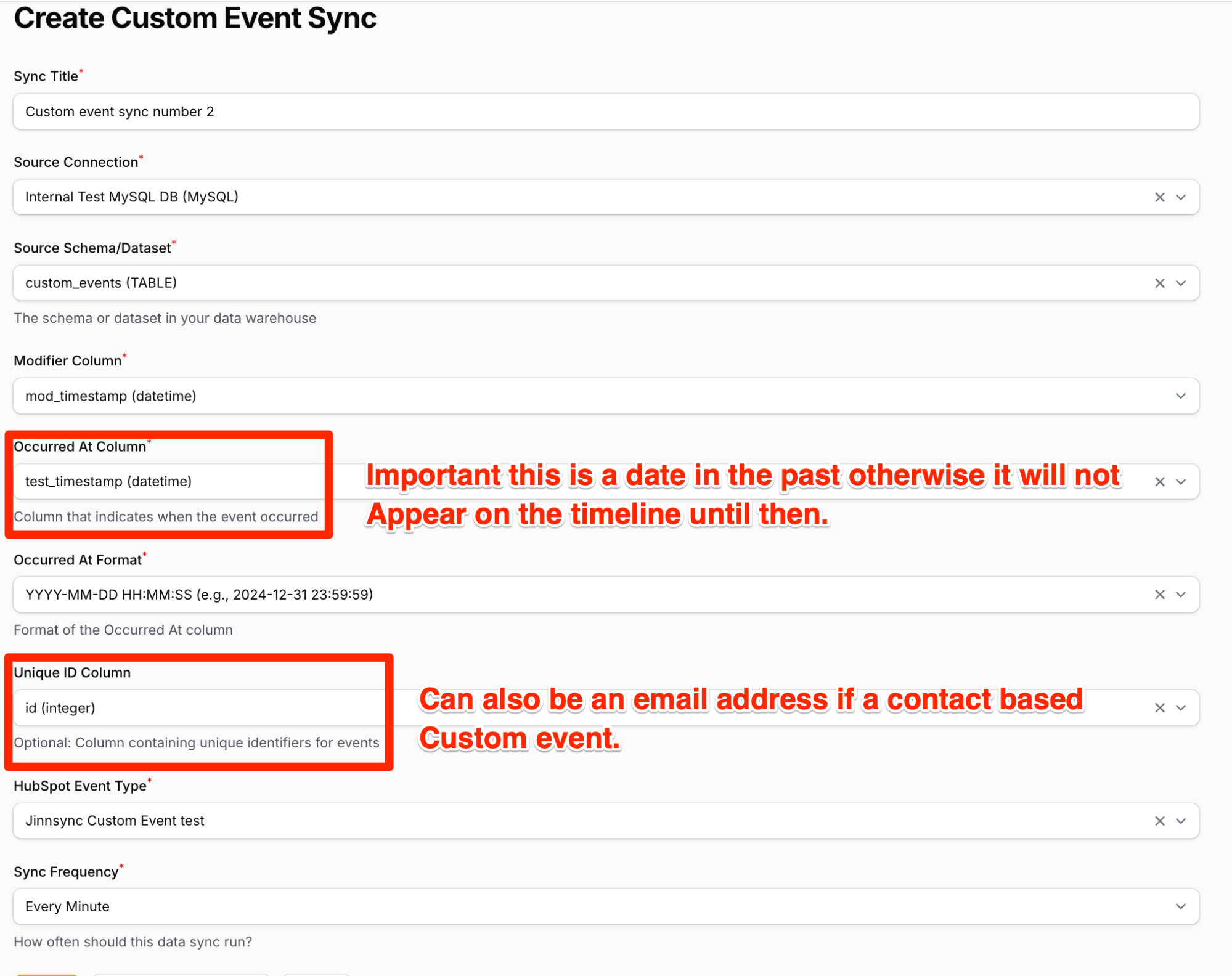
It is important to ensure this is mapped correctly to ensure the custom event is associated to the correct object in HubSpot.
Ready to sync?
Once everything has been configured the engaging team needs to provision your processing instance. Please reach out for pricing and next steps.